Material guide
PETG Print Settings for Beginners: A Starter Guide
Share this guide
Get the article link

Table of Contents
- A Printer-Agnostic PETG Starter Profile
- PETG Nozzle Temperature: Finding Your Range
- PETG Bed Temperature and First Layer Settings That Stick
- How to Stop PETG Stringing and Oozing
- Print Speed, Cooling, and Part Fan Settings for PETG
- Filament Prep: Moisture, Drying, and Storage
- A Systematic Calibration Workflow for PETG
- Frequently Asked Questions
Last Updated: October 19, 2026
A Printer-Agnostic PETG Starter Profile
PETG print settings for beginners start with one rule: treat every number as a starting point, not a promise. LineBoss Filament works with makers every week who copy a settings list from a video and then wonder why their part warps or strings.
PETG is a copolyester filament that bridges the gap between PLA's easy printing and ABS's toughness. It bonds strongly between layers, resists water, and handles impact well. It also sticks to bare glass almost too well and strings if you push it too hot.
Below is a conservative starter profile. Run it, then calibrate.
| Setting | Starter Value | Adjust When |
|---|---|---|
| Nozzle temperature | 240 °C | Stringing → down; weak layers → up |
| Bed temperature | 80 °C | Poor adhesion → up; elephant's foot → down |
| First-layer speed | 20 mm/s | Always keep slow |
| Print speed | 40 mm/s | Raise only after calibration |
| Part cooling fan | 30-50% | Bridging → raise; layer cracks → lower |
| Retraction distance | 1-2 mm (direct drive), 4-6 mm (Bowden) | Tune per extruder |
| Layer height | 0.2 mm | Match your nozzle |
PETG Nozzle Temperature: Finding Your Range
Most PETG filaments print between 230 °C and 250 °C, and the spool's own label always outranks a generic chart. LineBoss PETG runs well in that band, but the honest answer is that your hotend and thermistor decide the final number.

Why the range exists: PETG needs enough heat to bond layers without scorching. Too cool and layers peel apart. Too hot and the nozzle drags strings across the part.
A common mistake is chasing a perfect number from a forum. Instead, print a temperature tower from 230 °C to 250 °C in 5 °C steps. Look for the block with strong walls and the least stringing.
- Start mid-range at 240 °C
- Print a tower in 5 °C steps
- Judge layer strength first, surface finish second
- Record the winner on the spool
PETG Bed Temperature and First Layer Settings That Stick
Bed temperature for PETG usually lands between 70 °C and 85 °C, with 80 °C a safe starting point. But the bed number is only half the story. PETG's first layer is where beginners win or lose the print, because every later layer builds on it, and because PETG bonds to some surfaces more aggressively than PLA ever does.
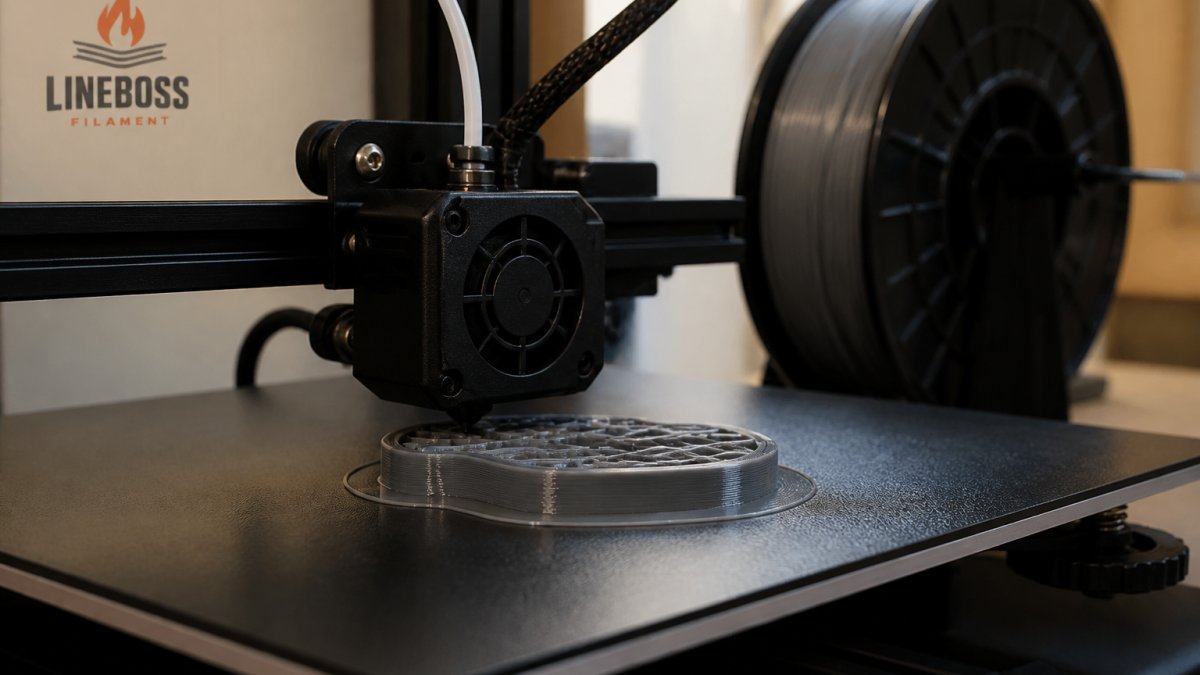
PETG First Layer Settings: Speed, Squish, and Surface
Slow down. A first-layer speed of 15-25 mm/s gives the plastic time to press into the bed. Set your first-layer height to about 0.2-0.25 mm and adjust your Z-offset until the lines touch with no gaps and no ridges. Too high and the part lifts; too low and the nozzle plows through the plastic, which on PETG can also weld the skirt to the part.
A practical first-layer checklist:
- Level the bed mechanically before touching Z-offset.
- Print a single-layer patch and inspect it under light: lines should touch, not overlap.
- Adjust Z-offset in small steps, reprinting between changes.
- Keep the first layer slow until adhesion is repeatable, then leave it slow.
Bed Surfaces and the Adhesion-vs-Release Trade-off
Surface choice changes everything, and the trade-off is the part beginners miss: the same grip that stops corners lifting is the grip that can tear a sheet or chip glass on removal.
- Textured PEI: good grip and easy release once cool. A common beginner-friendly choice.
- Smooth PEI: strong hold, sometimes too strong. Let the plate cool fully before flexing.
- Bare glass: can bond permanently. Use a release agent every time.
- Glue stick: a thin layer works as both adhesion aid and release barrier. On smooth sheets it is often the difference between a clean release and a torn surface.
Safe Removal: Let It Cool, Then Flex
Most PETG release problems are really removal problems. PETG shrinks slightly as it cools, which naturally loosens the bond, so patience does most of the work. Wait until the plate is at room temperature, then flex a flexible sheet or use a thin scraper at a low angle. Never pry a hot part off a smooth sheet, and never twist a part still stuck to glass.
If corners still lift after these steps, raise bed temperature in small increments within the filament maker's listed range before changing anything else. If the part releases too easily, the first layer is likely too high or the bed too cool.
How to Stop PETG Stringing and Oozing
Stringing comes from wet filament and too much heat, in that order. Dry the spool first, then tune temperature, then tune retraction. Skipping straight to retraction settings wastes time.
For retraction, direct-drive extruders usually need only 1-2 mm, while Bowden setups often need 4-6 mm. There is no universal number, because tube length and extruder design change the pressure in the melt zone. Print a retraction test at two or three distances and pick the shortest one that clears the strings.
Other levers that help:
- Lower nozzle temperature by 5 °C
- Raise travel speed so the nozzle moves away faster
- Enable "wipe on retract" if your slicer offers it
- Avoid printing multiple small parts far apart in one job
Print Speed, Cooling, and Part Fan Settings for PETG
PETG likes moderate speed and gentle cooling, but the right numbers depend on your hotend, your extruder, and whether the printer is enclosed. A stock hotend on an open printer and an upgraded hotend in an enclosure will not want the same profile, so treat the values below as a starting band and adjust one variable at a time.
Speed: Walls Slow, Infill Faster
- Outer walls: 30-40 mm/s
- Inner walls: 40-50 mm/s
- Infill: 50-60 mm/s
- First layer: 15-25 mm/s
Outer walls run slow because surface finish and layer bonding are decided there. Infill can run faster because it is hidden and less sensitive to cooling. If you raise speed, raise it on infill first and watch for under-extrusion or weak layer bonding before touching wall speed. A direct-drive extruder usually tolerates speed changes better than a Bowden setup, where pressure lag in the tube can starve the melt zone at higher speeds.
Cooling: Gentle by Default, Stronger for Bridges
Keep the part cooling fan in the 30-50% range for normal printing. Full fan blasting can crack layers apart, because PETG shrinks slightly as it cools and strong airflow pulls the layers tight too fast. If layers crack or split, lower the fan before you raise the temperature.
Bridging is the exception. For bridges and overhangs, more fan helps the plastic freeze in mid-air. Many slicers let you set a separate bridge fan speed, so use it rather than raising the global fan.
Hardware Dependence: Enclosures and Hotends
An enclosed printer holds heat around the part, which reduces the cooling need and can make a 30% fan setting behave like a higher one on an open frame. A stock hotend may struggle to hold temperature at higher flow rates, so if you see temperature droop during fast infill, slow down rather than pushing the heater harder. Upgraded hotends with more melt capacity can usually sustain higher speeds, but only after flow and temperature are calibrated.
Decision Criteria: Strength vs. Surface Finish
Use this order when tuning:
- Set fan low enough that layers do not crack.
- Raise speed on infill until extrusion stays consistent.
- Raise wall speed only if surface finish holds.
- Add bridge and overhang fan separately.
If you cannot get both strength and finish at the same settings, favor strength for functional parts and finish for display parts, and save each as its own profile. The slicer settings resource walks through this order in more detail.
Filament Prep: Moisture, Drying, and Storage
Wet PETG prints cloudy, pops, and strings no matter what settings you use. PETG absorbs moisture from the air, so a spool left out for weeks will print worse than a fresh one.
LineBoss vacuum seals each spool with desiccant for exactly this reason. Once the bag is open, store the spool in an airtight box with fresh desiccant.
For drying, use a dedicated filament dryer set to the temperature range the filament maker lists on the spool. Follow that label, not a guess. Signs you need to dry:
- Popping or crackling sounds at the nozzle
- Cloudy or bubbly surface finish
- Sudden heavy stringing on a spool that printed clean before
A Systematic Calibration Workflow for PETG
Calibration works best as a fixed order, because each step depends on the one before it. Jumping around creates confusing results.
- Dry the filament. Everything else is noise if the spool is wet.
- Level the bed and set Z-offset. Get a clean first layer.
- Run a temperature tower. Lock in nozzle temperature.
- Tune flow rate. Check wall thickness against your slicer's target.
- Tune retraction. Shortest distance that stops stringing.
- Set fan and speed. Adjust for strength versus surface finish.
- Print a test part. Confirm the profile on something real.
Save the profile per filament brand and color, since pigments can shift behavior slightly. LineBoss publishes starting profiles for its materials, and the slicer settings resource walks through the same order. If you sell printed parts, the cost calculator helps you price them.
For background on how thermoplastics behave during extrusion, MIT's materials science open courseware covers polymer structure, and the ASTM committee on additive manufacturing publishes the standards behind test methods. The NIST additive manufacturing program also tracks measurement work in the field.
Frequently Asked Questions
What nozzle temperature should I use for PETG?
Start within the range printed on your spool, typically 230-250 degrees Celsius for most PETG brands, and confirm against the material maker's data sheet. Run a temperature tower across that range to find where layer adhesion is strong and stringing is minimal. Nozzle temperature interacts with print speed and cooling, so a value that works at 40 millimeters per second may need adjusting at 60. Always stay at or above the filament maker's minimum, and check your printer's hotend rating before pushing toward the top of the range.
How do I stop PETG from sticking too strongly to the build plate?
PETG can bond aggressively to bare glass and some PEI surfaces. Use a release agent such as a glue stick or a dedicated separation layer, and let the plate cool completely before removing the part. Avoid printing directly on untreated glass, and check your build surface maker's guidance for PETG. If a part feels locked on, warm the plate slightly and use a plastic scraper rather than force. A small z-offset increase can also reduce squish and make release easier without losing adhesion.
Does PETG need to be dried before printing?
PETG absorbs moisture from the air, and wet filament shows up as popping sounds, excessive stringing, blobs, and weak layer adhesion. If a spool has been open for weeks or you see those symptoms, dry it using a dedicated filament dryer at the temperature the filament maker specifies, then store it sealed with desiccant. Avoid kitchen ovens, which swing in temperature and can deform the spool. Keep spools in a dry box between prints to slow reabsorption.
Should the part cooling fan be on when printing PETG?
Most beginners get better results with the part cooling fan running at a low to moderate level, often 30-50 percent, rather than full blast or fully off. Too much cooling can weaken layer adhesion and cause parts to split; too little leads to sagging overhangs and stringing. Adjust in small steps and watch bridging and overhang quality. On printers with a dedicated fan duct, confirm the airflow actually reaches the nozzle area before tuning further.
PETG rewards patience more than clever settings. Dry the spool, dial in the first layer, then change one variable at a time until the part looks right. LineBoss Filament sells PETG with a ±0.02 mm diameter tolerance and vacuum sealing, plus profile help when a spool misbehaves. Get started with LineBoss Filament and build a profile you can trust on every spool.